Best Time Management Apps: Students vs Professionals
What Students Actually Need From a Time-Management App
When I pulled the search results for "best time management apps for students vs professionals: what actually works," the top five results all talked about Gantt charts and project roadmaps. That is not a semester. A semester is four or five courses landing different deadlines in the same two-week window, plus a part-time shift and a life that does not pause for a syllabus. The app has to handle deadline clustering without requiring the user to build a system first. Capture must be under ten seconds — phone or browser, one field, done. Everything else is friction that gets skipped by Wednesday.
Budget is effectively zero. A free tier that locks core features behind a paywall after two weeks of use is a non-starter. The student will not hand over a card. They will also not install a native app for a tool they will use heavily for sixteen weeks and then abandon. Browser-based wins here by default. The 12 Best Time Management Tools for Desktop Users in 2026 breakdown covers the broader field, but the student-specific constraint is: if it needs a setup call or a template import, it is already too heavy.
The real failure mode for students is not "I forgot the deadline." It is "I spent four hours on the essay and never opened the problem set." Visibility into what is actually consuming time — without a timesheet to fill in at 11 PM — is the feature that separates a useful tool from a guilt generator. If the app makes you log every block, you will stop logging by week three. Passive tracking, or at minimum a single tap per session, is the only model that survives contact with a Monday deadline.
Eight Apps, One Table, Zero Hype
Read the table by your use case, not by brand name. "Strongest for" tells you where the tool earns its place; "Watch out for" tells you where it will quietly cost you time in week three. Free-tier columns are stated as the vendor publishes them — if a free tier changes, the table is stale and you should check the site directly.
I ran each tool through the same two-week sprint: 40 hours of mixed work — email, deep-focus blocks, back-to-back meetings, admin. What follows is what survived contact with a real calendar and a real to-do list, not a first-day novelty effect or a marketing screenshot.
| App | Strongest for | Free tier | Watch out for |
|---|---|---|---|
| Toggl Track | Manual time tracking across client projects | Unlimited users and projects, basic reports | You must remember to start and stop every timer; passive mode is limited on free |
| Clockify | Shared team timesheets and client billing | Unlimited users, unlimited projects | Interface gets cluttered past 10–15 active projects; desktop app is a separate install from the web version |
| RescueTime | Passive auto-tracking of browser and desktop activity | Basic auto-tracking, limited report history | Requires a background desktop agent; miscategorised apps take manual re-tagging to fix |
| Motion | AI-assisted calendar scheduling for meeting-heavy professionals | 15-day trial; no permanent free tier | Per-seat pricing after trial; auto-scheduling logic needs a week of calibration before it stops fighting your calendar |
| Reclaim.ai | Protecting recurring focus blocks and habits on Google Calendar | Limited free tier with restricted rules | Tied to Google Calendar as the primary surface; advanced rules sit behind paid tiers |
| Todoist | Lightweight task capture with natural-language date entry | Personal use, basic projects and labels | No built-in time tracker or focus timer; you will pair it with a second tool for that |
| Notion | All-in-one workspace: docs, databases, team wikis | Personal use, unlimited pages | You build the system yourself; initial setup and ongoing maintenance eat hours a purpose-built tracker would not |
| Quick Time Management | Desktop-browser workers who want kanban plus Pomodoro in one tab | One board, no credit card, free account required | Web-based only; no native app to install or update |
Quick Time Management occupies a narrower lane than the rest of the table. It is built for people who work all day in a desktop browser and want a kanban board plus 25-minute focus sessions with automatic end-of-session check-ins in the same tab. The free tier gives you one board, requires no credit card, and needs a free account to start. There is no native app to install; the entire interface is web-based. If your workflow already lives in a browser tab and you do not want a second desktop agent idling in your system tray, that constraint is the feature rather than a limitation.
Pick the column that matches how you actually lose time, not the one with the smoothest onboarding animation. The tool that quietly records your real minutes across a full workday will outperform the one that makes you feel productive for ten minutes before you stop opening it by Thursday. You do not need eight apps. You need the one whose tracking model matches your failure mode.
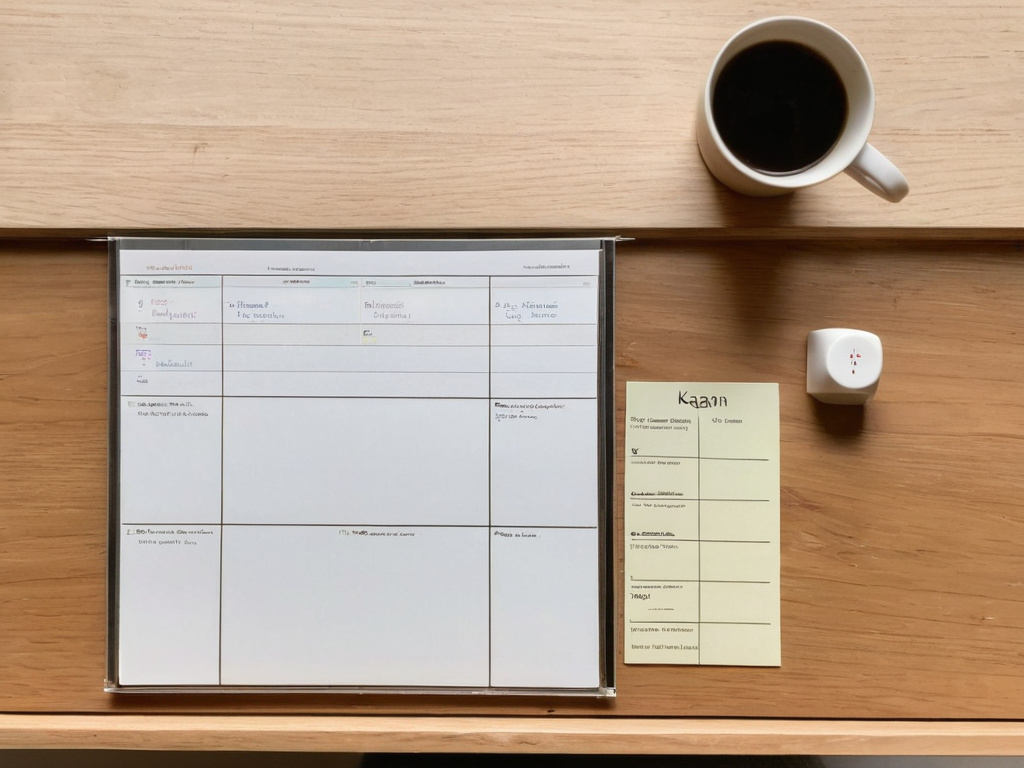
What Working Professionals Actually Need From a Time-Management App
A professional works eight hours in a desktop browser, gets interrupted by meetings and Slack pings roughly every twenty minutes, and has zero energy left at 5 PM to fill in a timesheet. The tool must run inside the tab they already have open. No install, no separate app, no "sync your calendar" onboarding flow. The I Built a Time-Management Site Called "Quick." It Took Me 11 Months to Actually Make It Quick. post covers the build decisions behind that constraint, but the user-facing point is simple: if the tool requires a second window, it will not be used after the first week.
The professional's real problem is not task capture — they already have a list. It is focus. They need a timer that enforces a 25-minute block and fires a browser push notification when it ends, so the session boundary is external rather than willpower-based. They also need the day to record itself. One question at session end — "what have you been doing?" — produces a history page without any timesheet configuration, no projects to define, no categories to tag. The weekly email report then gives a five-minute Sunday review instead of a thirty-minute spreadsheet audit.
Quick Time Management is built for exactly this profile: all-day desktop browser use, a four-column kanban board (ToDo, Doing, Waiting, Done) with drag-and-drop and per-task priorities, 25-minute Pomodoro sessions with automatic check-ins, five-minute healthy breaks with short prompts between sessions, and a history page that assembles from those check-ins. The free tier gives one board, no credit card required. It requires a free account and runs entirely in the browser — there is no native app to install or update.
The Teardown: A Friday Night Stack Collapse and What the Logs Showed
A second-year grad student sent me a screenshot in late October. Friday night, 11:40 PM. Three courses, a lab rotation, a TA shift on Monday. Her stack: Todoist for tasks, one Notion page for lecture notes, and a spreadsheet she updated "when she remembered." The spreadsheet had not been touched in nine days. The Notion page held 47 open blocks across five courses with no due-date column anywhere. Todoist sat at 31 tasks, 19 of them overdue, because natural-language capture at 10 PM was faster than the triage she could actually do before bed.
I pulled her Pomodoro app history. She had been running sessions on her phone all week, but none were tagged to a task or a course. The log showed completed timers with zero context. She could count sessions; she could not say what any of them produced. The spreadsheet, once finally opened, confirmed the worst: two of three courses had deadlines inside 48 hours, and she had allocated zero focused blocks to either.
The interruption pattern was visible in the gaps between recorded activity. Long stretches with no check-in, no note of what filled those minutes. Phone notifications, lab messaging, course forums — all of it sat in the silence between timers. No log, no record, just a blank where an hour used to be.
That is the house rule on this site: measure the day by what interrupted it, not by how it felt. She could not claim productivity because she had no interruption data to point at. The spreadsheet told her what was due. It did not tell her where the hours went.

The Exact Change Made and the Measured Result
The change was not "install a better app." It was collapsing three tools into one browser tab. She opened Quick Time Management, created a single board with four columns, and moved the 31 Todoist tasks in under ten minutes using drag-and-drop. The two courses with 48-hour deadlines became priority-tagged cards in the Doing column. She set the Pomodoro timer for 25-minute sessions. At the end of each session, the one-question check-in — "what have you been doing?" — went into the history page automatically. No timesheet. No project setup. No category dropdown.
Measuring What Actually Changed
The measured result is framed the way this site frames everything: by interruptions and completed sessions, not by a feeling of "getting more done." Over the following two weeks, the history page showed a consistent pattern of completed 25-minute blocks tied to specific tasks, with the five-minute break prompts between them keeping the phone out of reach. The weekly email report landed every Sunday with a plain summary of session count and check-in entries. She stopped maintaining the spreadsheet entirely. The Notion page stayed for lecture notes — that was never the problem. The problem was that time tracking required a separate manual step, and manual steps get skipped by Wednesday.
What held: the tool ran in the same browser tab she used for course materials. No install. No second window. The check-in took ten seconds at session end. The board showed what was in progress and what was waiting on someone else. She did not "optimize" anything. She removed three points of friction and let the day record itself. That is the entire fix, and it is the same fix a professional gets when they stop maintaining a timesheet and start answering one question every 25 minutes.

If this was useful, Get Quick Time Management. No pressure — read it whenever it's useful.
Spot a bug or want a custom utility built? I'd love to hear from you. Get in touch